From supplier to stock
You buy finished products under your own label from suppliers and factories. Pimbo keeps your suppliers, what to buy and every order in one place, next to what sells.
-
Step 1 of 4
Keep your suppliers in one place
Add each supplier once, with their currency, lead time and minimum order.
Pimbo records whether each order arrived on time, so you can see who delivers.
Suppliers 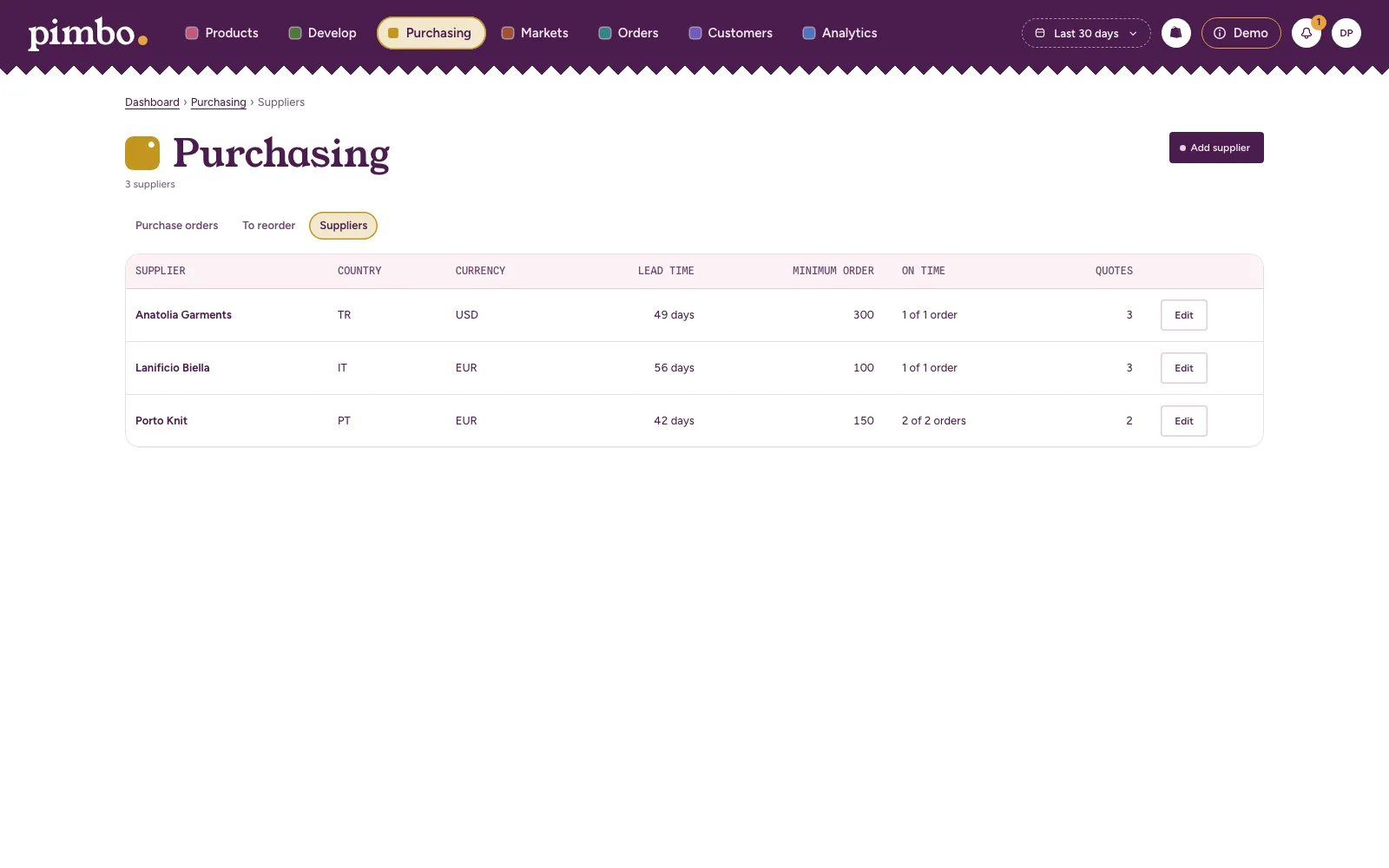
-
Step 2 of 4
See what to buy again
See which products have run out or soon will, at the rate they sell.
To reorder then works out how many to buy, allowing for each supplier’s lead time and what’s already on order.
Running out report 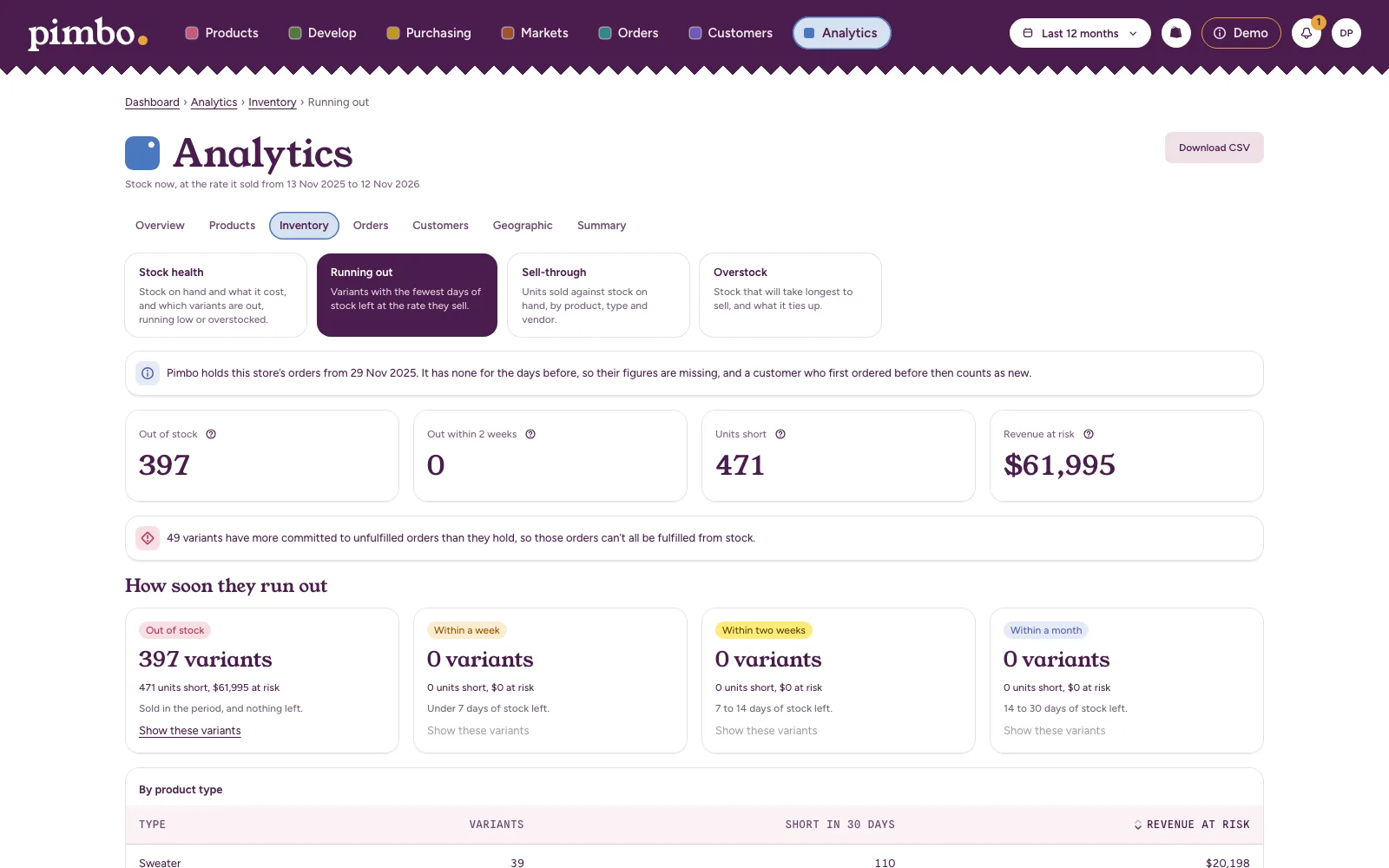
-
Step 3 of 4
Send the order, and let the supplier confirm it
Raise a purchase order with a line for each product. Larger orders can wait for someone to approve them first.
Your supplier opens the order from a link to confirm, decline or query it. They never need a seat.
Purchase order 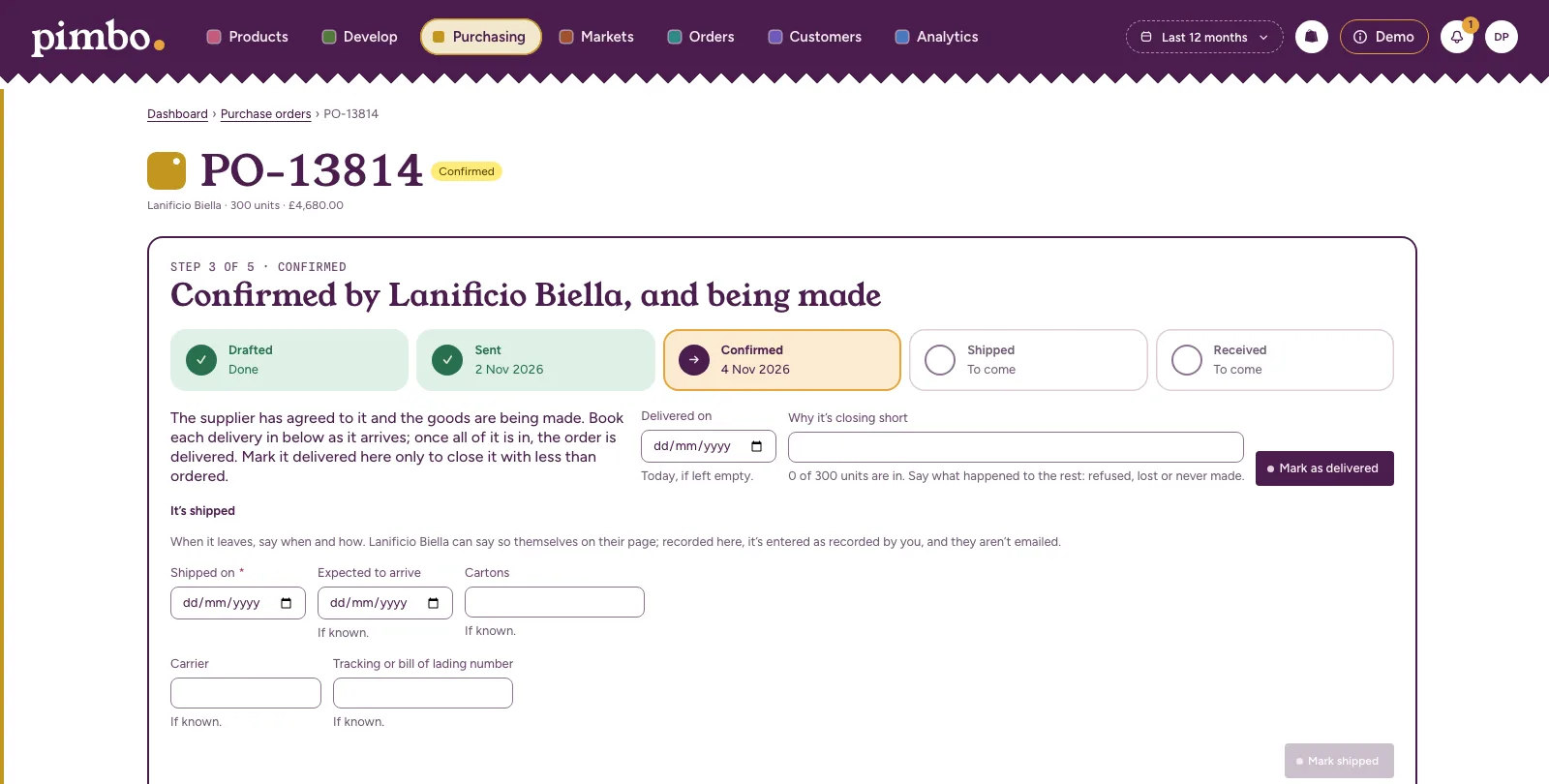
-
Step 4 of 4
Receive it, and pay what’s owed
Record each delivery as it arrives, even when it comes in more than one part.
The orders list shows what’s still to come, what’s late and what you still owe each supplier.
Purchase orders 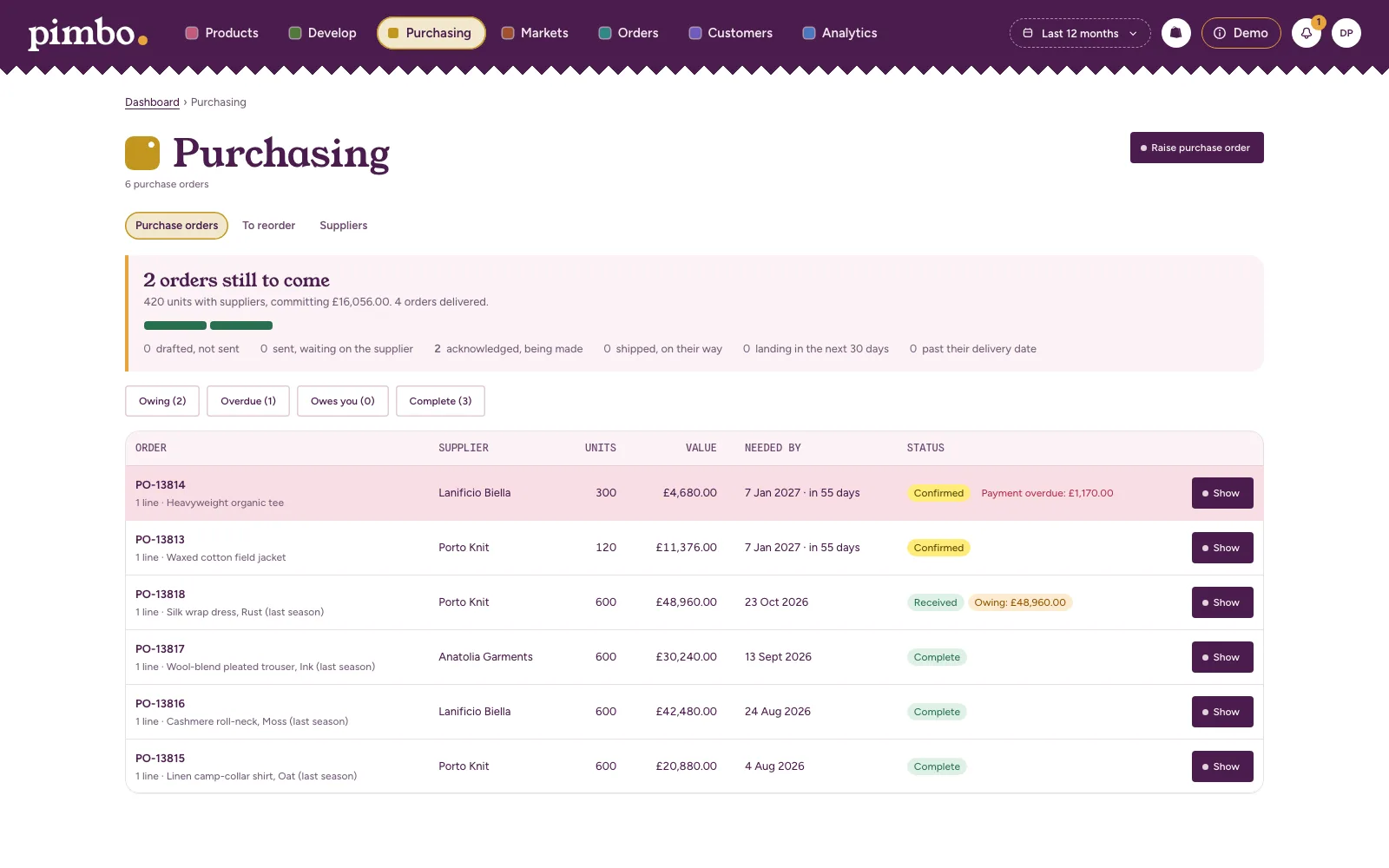
Watch it at work
Buying and merchandising in Pimbo, filmed in a demo store and narrated as they go.
Find your way around Purchasing
Read what’s said
Welcome to Purchasing. Everything you order from a supplier lives here, from the first draft through to goods received, and you'll find it all in the menu along the top.
Purchase orders opens on what's still to come, so you can see what's heading your way. What's owing, what's overdue and what's owed back to you is only a click away.
Open an order the supplier has confirmed and you'll see where it has got to, and what happens next. No chasing round for an update.
The lines show exactly what you ordered. Each one links through to the product it's for, so you can check the detail without losing your place.
Payments follow the supplier's terms. Every payment, invoice and delivery is recorded against the order, so the full picture sits in one place.
Your supplier confirms in their own sign-in. Everything they tell you is kept in the order's ledger, by name, so you always know who said what.
The order prints, or saves as a PDF, on your own template. And when you need the same again, a repeat order starts from this one.
To reorder suggests what's worth buying again, based on what's selling and how much is left. It's grouped by supplier, so you can plan one order at a time.
If a product hasn't got a supplier yet, you can give it one here. The rules behind each suggestion sit in stock rules, so nothing's a mystery.
Suppliers lists everyone you buy from, in one tidy place.
Open a supplier and you'll find their contacts, terms, currency, lead time, factories and certificates together, rather than scattered across inboxes.
When you raise a purchase order, you start with the supplier. Their currency, terms and lead time come with them, so you're off to a quick start.
Find your way around Products
Read what’s said
Let's start in Products, up in the menu along the top. This is where your whole catalogue lives.
Every product sits here, showing whether it's ready to sell, its price, and how many variants it carries. A quick read on the shape of your range.
The same products appear as rows, so you can scan and sort them. Search narrows things down by name as you type.
Open a product and you'll see how it's sold: units, revenue, margin and how fast it moves, then stock broken down by variant.
Scroll on for how much the product leans on discounts, plus each variant's price, cost, stock and days of cover.
The product editor brings details, the search listing and variants together in one place. This store keeps Shopify as the master, so changes are made there.
Completeness shows how much of the catalogue is ready to sell, measured against the checks you've said matter.
Each check tells you whether it's required or just good to have, and links straight to the products failing it. Underneath, you'll see how each family's getting on.
Families group products by what they are, and set out which facts each kind of product needs.
Open one and it lists what it asks for, which of those are required, and the products sitting in it.
Editing their values opens a grid of every product against every attribute, so you can fill the gaps in one go.
Inventory puts what needs attention first: oversold, out of stock, running low and not selling, each with a count.
Choose out of stock and you'll get those products listed, with their variants underneath.
Collections brings together every collection in the store, manual and smart, with how many products each holds and where it's published.
Choose Purchasing
Purchasing is the plan for buying your own label. It has everything in Merchandise, so you see what sells and what it makes. It adds suppliers, reorders and purchase orders.
You only need Develop if you design products yourself and take them through sampling.
What you order follows what sells, because both come from the same figures.
Not sure this is you? Find your fit in six questions.
$149 a month, or $1,490 a year, with a 14-day free trial. Shopify bills you for it. See pricing